Sunday, 16 October 2016

Chapter 5

Chapter 5 - Types of Utility Programs and Operating Systems
September 14th, 2016. Wednesday.


System Software consists of the programs that control or maintain the operations of the computer and its device. System software are such as operating systems and utility programs.

An operating system or other words also known as (OS) is a set of programs containing instructions that work together to coordinate all the activities that work together to coordinate all the activities among computer hardware resources. These activities includes the starting and the shut down of a computer, the management of the memories and programs in the computer, task coordination, internet connection establishment, monitor performance, administer security, and so on.

Operating System Functions
The process of starting or restarting a computer is called booting. This booting may be specified into two different groups, which are cold booting and warm booting. Cold booting is when you are turning on a computer that has been powered off completely. Whereas warm booting you are using the operating system to restart the computer.

A boot drive is the drive from which your computer starts. You may also boot from a boot disk.  A recovery disk contains a few system files that will start the computer.

A user interface controls how you enter data and instructions and how information is displayed on the screen. With a graphical user interface (GUI), you interact with menus and visual images.
Memory management optimizes the use of RAM.  Virtual memory is a portion of a storage medium functioning as additional RAM.


A performance monitor is a program that assesses and reports information about various computer resources and devices.

Stand-Alone Operating Systems
Windows 7 provides programs such as Windows Firewall, Windows DVD Maker, WIndows Media Player, Desktop Gadget Gallery, and many more. These are examples of stand-alone operating systems.

The Macintosh operating system has set the standard for operating system ease of use. Latest version of such is the Mac OS X.

Utility Programs
A utility program is a type of system software that allows a user to perform maintenance-type tasks.

A file manager is a utility that performs functions related to file management. Such as displaying a list of files, organizing files in folders, and creating shortcuts.

A search utility is a program that attempts to locate a file on your computer based on criteria you specify.

Disk defragmenter reorganizes the files and unused space on a computer's hard dish so that the operating system accesses data more quickly and programs run faster. This process is known as defragmenting. 

Spyware is a program placed on a computer without the user's knowledge that secretly collects information about the user. Note that a spyware remover could detect and delete spywares and other similar programs.

Adware displays on online advertisement is a banner or pop-up window. An adware remover  is a program that detects and deletes adware.

A media player allows you to view images and animation, listen to audio , and watch video files on your computer.


Disc burning software writes text, graphics, audio, and video files on a recordable or rewritable optical disc.

A personal computer maintenance utility identifies and fixes operating system problems, detect and repairs disk problems, and includes the capability of improving a computer's performance.

Sunday, 18 September 2016

Chapter 6

Chapter 6 - Understanding Input

September 13th, 2016. 

Understanding Input. What defines an input? An input basically is any data and instructions entered into the memory of a computer. Furthermore, instructions can be entered into the computer in the form of programs, commands, and user responses.

An input device is any hardware component that allows users to enter data and instructions into a computer.

The Keyboard

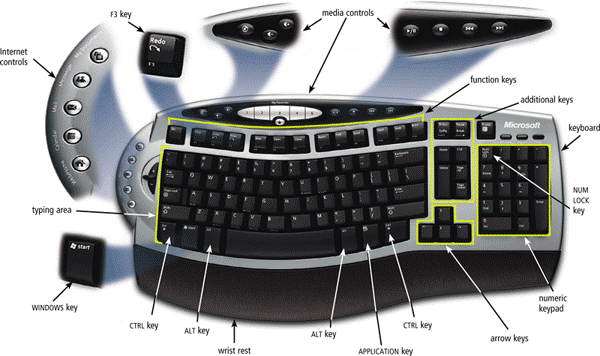
A keyboard is an input device that contains keys users press to enter data and instructions into a computer.


Fun-fact, did you know that most desktop computer keyboards have between 101 and 105 keys? Most desktop keyboards also have a numeric keypad on the right side of the keyboard. It also have function keys, CTRL keys, ALT keys, and arrow keys. Besides those, WINDOWS key, APPLICATION key, and toggle can also be found on most desktop computer keyboards.

The insertion point, also known as the cursor, is a symbol on the screen that indicates where the next character you type will appear. In other words, it is also known as the mouse cursor. 

Keyboards come in many variety. Generally, there are still only two types of keyboards, which are the wired keyboards (USB) and the wireless keyboards (Bluetooth/IrDA). 

An ergonomic keyboard, however, has a special design which reduces the chance of wrist and hand injuries. Ergonomics incorporates comfort, efficiency, and safety into the design of the workplace. 


Keyboards on mobile devices typically are smaller and/or have fewer keys. Some phones have predictive text input, which saves time when entering text using the phone's keypad.

Pointing Devices

A pointing device is an input device that allows a user to control a pointer on the screen. A pointer however is a small symbol on the screen whose location and shape change as a user moves a pointing device.

Mouse

A mouse is a pointing device that fits under the palm of your hand comfortably. It can either be wired or wireless. 

Other Pointing Devices

A trackball is a a stationary pointing device with a ball on its top or side. Normally used for scrolling up and down a webpage. 

A touch-pad is a small, flat, rectangular pointing device that is sensitive to pressure and motion. Examples are those that are normally present on a laptop. 

A pointing stick is a pressure-sensitive pointing device shaped like a pencil eraser that is positioned between key on a keyboard. Something like this: 


Touch Screens and Touch-Sensitive Pads

Generally, there are two types of touch sensitive surfaces. Which are:

Microsoft Surface


Touch-sensitive pads


Pen Input

With pen input, you touch a stylus or digital pen on a flat surface to write, draw, or make selections. 

Game Controllers

Video games and computer games use a game controller as the input device that directs movements and actions of on-screen objects. Such as:
  • Gamepads
  • Joysticks and Wheels
  • Light guns
  • Dance pads
  • Motion-sensing controllers

Digital Cameras

A digital camera is a mobile device that allows users to take pictures and store them digitally. Studio cameras, field cameras, and point-and-shoot camera are examples of a digital camera. 

There are two factors that affect the quality of digital camera photos: 

Resolution

  • Resolution is the number of horizontal and vertical pixels in a display device.
  • A pixel is the smallest element in an electronic display. 

Number of bits stored in each pixel 

  • Each pixel consists of one or more bits of data. 
  • The more bits used to represent a pixel, the more colours and shades of gray that can be represented. 

Voice Input

Voice input is the process of entering input by speaking into a microphone. Voice recognition however is the computer's capability of distinguishing spoken words. 

Audio input is the process of entering any sound into the computer. Sounds includes speech, music, sound effect, and many more. 

Video input is the process of capturing full-motion images and storing them on a computer's storage medium. 


A Web cam is a type of digital video camera that enables a user to capture video and still images, send e-mail messages with video attachments, add live images to instant messages, broadcast live images over the Internet, and to make video telephone calls. 

A video conference is a meeting between two or more geographically separated people. 

Scanners and Reading Devices

There are 4 types of scanners and reading devices that we learnt, which are: 
  • Flatbed
  • Pen or Handheld
  • Sheet-fed
  • Drum
Optical character recognition involves reading characters from ordinary documents. A turnaround document  is a document you return to the company that creates and sends it. 

Optical mark recognition reads hand-drawn marks such as small circles or rectangles.  An OMR device scans the documents and matches the patterns of light. 

Magnetic stripe card readers read the magnetic stripe on the back of cards such as: 
  • Credit cards
  • Entertainment cards
  • Bankcards 
  • Other similar cards

Bio-metric Input 

Bio-metrics authenticates a person's identity by verifying a personal characteristics, such as; 
  • Fingerprint reader
  • Face recognition system
  • Hand geometry system
  • Voice verification system
  • Signature verification system
  • Iris recognition system
  • Retinal scanners 

Input Devices for physically Challenged Users 

Several input devices are available to assists physically challenged users, such as the keyguard, keyboards with larger keys, on-screen keyboard, various pointing devices, head-mounted pointer, gesture recognition, and computerized implant devices. 


Friday, 16 September 2016

Chapter 4(b)

Chapter 4(b) - System Unit Components 
September 8th, 2016. 


Due to my absence in blogging I would firstly wish to apologize for procrastinating this awfully. Without further ado, let's begin the second half of chapter 4, System Unit Components. 

ROM
Read-only memory, or in other words also know as ROM, refers to memory chips storing permanent data and instructions. Examples may include a firmware. 
s
Furthermore, A programmable read-only memory, otherwise known as PROM, is a blank ROM chip that can be written to permanently. 

There are also such thing as electrically erasable programmable read-only memory, also known as EEPROM. Memories as such can be erased easily. 

CMOS technology provides high speeds and consumes little power. 

Access Time
Access time is the amount of time it takes the processor to read from the memory. It is also measured in nanoseconds. 

Expansion Slots and Adapter Cards
An expansion slot is a socket on the motherboard that can hold an adapter card

An adapter card on the other hand enhances functions of a component of the system unit  and/or provides connections to peripherals. 

With Plug and Play, the computer automatically can configure adapter cards and other peripherals as you install them. 

Removable flash memory may include memory cards, USB flash drives, and PC Cards/ExpressCard modules. 

Ports and Connectors
A port, sometimes also referred to as a jack, is at which a peripheral attaches to or communicates with a system unit. A connector is what joins a cable to a port. 


On a notebook computer, the ports are on the back, front, and/or sides. 

A USB port can connect up to 127 different peripherals together with a single connector. It is also able to attach multiple peripherals using a single USB port with a USB hub. 

Other types of ports also include: 
  • Firewire port
  • Bluetooth port
  • SCSI port
  • eSATA port
  • IrDA port
  • Serial port
  • MIDI port 
A Bluetooth wireless port adapter converts a USB port into a Bluetooth port whereas a smart phone might communicate with a notebook computer using IrDA port. 

A port replicator is an eternal device that provides connections to peripherals through ports built into the device. 

A docking station is an external device that attaches to a mobile computer or device. 

Buses
A bus allows the various devices both inside and attached to the system unit to communicate with each other. Examples are data bus and address bus. 

Word size is the number of bits the processor can interpret and execute at a given time.

Expansion slots are connected to expansion buses. Common types of expansion buses include PCI bus, PCI Express bus, Accelerated Graphics Port, USB Firewire bus, and PC card bus. 

Bays
A bay is an opening inside the system unit in which you can install additional equipment.


Power Supply
The power supply converts the wall outlet AC power into DC power. 

Some external peripherals have an AC adapter, which is an external power supply. 

Keeping Your Computer or Mobile Device Clean 
Keeping your computer clean is essential and every computer owner just know the basics of cleaning it. Failing to do so will harm you computer. Here are some tips while cleaning your computer. 

Clean your computer or mobile device once or twice a year. 

Turn off and unplug your computer or mobile device before cleaning it. 

Use compressed air to blow away dust. 

Use an antistatic wipe to clean the exterior of the case and a cleaning solution and soft cloth to clean the screen. 


Wednesday, 7 September 2016

Chapter 4 (a)

System Unit Components 
September 7th, 2016. Wednesday. 


    Today we have learnt about the system unit components. The system unit itself  is a case that contains electronic components of the computer used to process data. The inside of the system unit on a desktop personal computer includes drive bays, power supply, sound card, video card, processor, and memory. The motherboard is the main circuit board of the system unit. In other words, the motherboard is basically a computer chip that contains integrated circuits.

    The processor, however, also called the central processing unit, interprets and carries out the basic instructions that operate a computer. A processor usually contains a control unit and an arithmetic logic unit. Type of processor may vary, such as a multi-core processor, dual-core processor, and a quad-core processor.


  • The control unit is the component of the processor that directs and coordinates most of the operations in the computer. 
  • The arithmetic logic unit performs arithmetic, comparison and other operations. 
    For every instruction, a processor repeats a set of four basic operations, which comprise a machine cycle. Four basic steps involves in a machine cycle includes fetch, decode, execute, and store. Most current personal computers support pipe-lining. This process begins fetching a second instruction before it completes the machine cycle for the first instruction. 
    
    The processor contains registers, that temporarily hold data and instructions. The system clock on the other hand controls the timing of all computer operations. The pace of the system clock is called the clock speed, and is measured in gigahertz. 

    A processor chip generates heat that could cause the chip to burn up. Therefore processors normally require some additional cooling technologies, such as heat sink, and liquid cooling technology. 
 
    Next, we have learnt about data representation. These include the understanding of analog signals and digital signals. Analog signals are continuous and vary in strength and quality. Whereas digital signals are in one of two states, which are on or off. Most computer we have today are digital.

    The binary system uses two unique digits, which is 1 and 0 only. The American Standard Code for Information Interchange (ASCII) is the most widely used coding scheme to represent data. 

    Furthermore, we have studied about the memory. The memory consists of electronic components that store instructions waiting to be executed by the processor, data needed by those instructions, and the results of processing data. The memory also stores three basic categories of items, which are the operating system and other system software, application programs, data being processed, and the resulting information. Each location in memory has an address. Memory size is measured in kilobytes, megabytes, gigabytes, or even terabytes. 

    The system unit contains two types of memory, which is the volatile memory and the nonvolatile memory respectively. The volatile memory loses its contents when the power is turned off, example includes RAM. The nonvolatile memory does not lose its contents when the power is removed, example includes ROM, flash memory, and CMOS. 

    There are three basic types of RAM chips, which are: 
  • Dynamic RAM 
  • Static RAM 
  • Magnet resistive RAM 


  • The amount of RAM necessary in a computer often depends on the types of software you plan to use. 


Tuesday, 6 September 2016

Software for Systems

Chapter 3
September 6, 2016. Tuesday. 


    I did not blogged about yesterday because Ms.Wan had replaced the lecture class with a tutorial class instead. There is never much information to share about tutorial sessions, we received a quiz and submitted it within the given time period, that's basically it. Besides that, it has also made today's classes interestingly different as Ms.Wan have cancelled a tutorial session that we would normally have since we had already had it yesterday. But for today's class, Ms.Wan had talked about the whole of chapter 3, Software for Systems. It is an interesting chapter and I would brief more upon within this blog.  

Application Software
    For the very first topic of the day Ms.Wan had educated us about an Application Software. What is an application software? An application software consists of programs designed to make users more productive and/or assist with personal tasks. An application software comes in handy in many aspects in our daily basis. Such as to make business activities more efficient, to assist with graphics and multimedia projects, to support home, personal, and educational tasks, to facilitate communications, and many more. An application software comes in a variety of forms. These includes packaged software, custom software, web application, open source software, shareware, freeware, and public-domain software. System software serves as the interface between the user, the application software, and the computer's hardware respectively. In other terms, such are also known as utility programs. 

Business Software
    Next, we have moved on to business software. A business software is an application software that assists people while performing business activities. 


  • Word processing software allows users to create and manipulate documents. Such includes developing a document. 
  • Spreadsheet software allows users to organize data in rows and columns and perform calculations. Actions like charting depicts data in a spreadsheet in graphical form are part of a spreadsheet software. 
  • A database is a collection of data organized in a manner that allows access, retrieval, and use of that data. A database software allows users to create, access, and manage a database. 
  • Presentation software allows users to create visual aids for presentations to communicate ideas, messages, and other information to a group. 
  • Note taking software is a type of application software that enables user to enter typed text, handwritten comments, drawings, or sketches anywhere on a page. 
  • A software suite is a collection of individual programs available together as a unit. 
  • A personal information manager is an application software that includes appointment calendar, address book, notepad, etc. 
  • Scaled down versions of software are available to work with smart phones and other mobile devices. 
  • Project management software allows a user to plan, schedule, track, and analyze the events, resources, and cost of a project. 
  • Accounting software helps companies record and report their financial transactions. 
  • Document management software provides a means for sharing, distributing, and searching through documents by converting them into a format that can be viewed by any user. 
  • Enterprises typically require special computing solutions for various functional units.
Graphics and Multimedia Software


Software for Home, Personal, and Educational Use

  • Personal finance software
  • Legal Software
  • Tax preparation software
  • Personal DTP software
  • Personal paint/image editing software
  • Personal photo editing software\
  • Clip art/image gallery
  • Video and audio editing software
  • Home design/landscaping software 
  • Travel and mapping software
  • Reference software
  • Educational software
  • Entertainment software
Web Applications
    A Web application is a Web site that allows users to access and interact with software from any computer or device that is connected to the Internet. 


Application Software for Communications

  • Web Browser 
  • E-Mail
  • Instant Messaging
  • Chat Room 
  • Text, Picture, Video Messaging
  • RSS Aggregator
  • Blogging
  • Newsgroup/Message Board
  • FTP
  • VoIP
  • Video Conferencing
Learning Tolls for Application Software
    Online Help is the electronic equivalent of a user manual. You can ask a question or access the Help topics in subject or alphabetical order. Web-based Help provides updates and more comprehensive resources to respond to technical issues about software.
    A  Web-based training is a type of CBT that uses Internet technology and consists of application software on the Web. 
    Distance learning is the delivery of education at one location while the learning takes place at other locations.


Wednesday, 31 August 2016

Chapter 2

Chapter 2 - Fundamentals of the World Wide Web and Internet

    Independence day had just past yesterday and it is the beginning of a new month, September. Time flies, the year is already coming to an end. Today is a really special day, the 1st of September. It is our beloved lecturer Ms.Wan's birthday! Not to mention it is also my father's birthday today too, what a coincidence. The start of a  new month, the start of a new chapter. Today Ms.Wan had started and as well as covered the whole of chapter 2 already, amazing. 

Evolution of the Internet
    What is the internet? The internet is a worldwide collection of networks that links millions of business, government agencies, educational institutions, and individuals. The internet is what make the world whole. It connects people from different places around the world. The internet originated as ARPANET in September 1969 and had only two main goals, which are : 

  • To allow scientist at different physical locations to share information and work together.  
  • To function if part of the network were disabled or destroyed by a disaster. 


    Years after ARPANET becomes functional, ARPANET has become known as the Internet in 1986. Internet is formed when NSF connects NSFnet to ARPANET. In 1995, NSFnet terminated it;s netword on the Internet and resumed status as a research network. Internet2 is then been founded in 1996. Today, more than 550 million hosts connects to the Internet. How astonishing, such a great achievement achieved by mankind. 

    Have you ever heard of an access provider? Well not me, I had no idea where this word had even originated from. But an access provider is a type of business that provides individuals and organizations access to the Internet free or for a fee, how intriguing. There are 3 types of service providers that we have learnt about today. Which are, ISP (Internet Service Provider), OSP (Online Service Provider, and WISP (Wireless Internet Service Provider). 
  • Regional ISP's provides internet access only to a specific geographical area, but national ISP's on the other hand provides internet access in cities and towns nationwide. 
  • As for OSP, it contains many members-only features. Popular OSP's include AOL (America Online) and MSN (Microsoft Network) 
  • Wireless Internet Service Providers provides wireless internet access to computers and mobile devices, although it may require a wireless modem in order to perform so. 
The World Wide Web
    The World Wide Web, or in others words just known as Web, consists of a worldwide collection of electronic documents (web pages). A Website is a collection of related Webpages and associated items. However, a Web server is a computer that delivers requested Webpages to your computer. Web 2.0 refers to Web sites that provide a means for users to interact. 

    Every Webpage  has a unique address known as a URL or a Web address. A few terms of the internet or maybe tricks includes tabbed browsing. Tabbed browsing allows you to open and view multiple Web pages in a single Web browser window. This'll help you organize your work and will make multitasking much more easier.

    Besides that, there are two different types of search tools which everyone that uses the Internet should be aware of, which are search engines and subject directories respectively. Search engines assists in finding information which are related to a specific topic whereas subject directories classifies Webpages in an organized set of categories. A search engine is helpful in locating items such as : 
  • Images
  • Videos
  • Audio
  • Publications 
  • Maps 
  • People or Business
  • Blogs
    Did you know that some Web browsers contain an Instant Search box to eliminate the steps of displaying the search engine's Web page prior to entering the search text? These are some pretty interesting facts. There are up to thirteen types of Web sites, which includes :


    Multimedia refers to any applications that combines text with : 
  • Graphics 
  • Animation
  • Audio
  • Video
  • Virtual Reality
Graphics is a digital representation of a non-text information. It's formats include BMP, GIF, JPEG, PNG, and TIFF. For example, a thumbnail is a small version of a larger graphic. 
Animation is the appearance of motion created by displaying a series of still images in sequence. Like a stop-motion, frame-by-frame kind of video. 
Audio inlcudes music, speech, or any other sound. An audio file is normally able to be compressed such that it would take up lesser space. 
Video consists of images displayed in motion.
Virtual reality is the use of computers to stimulate a real or imagined environment that appears as a three-dimensional space. 

    A plug-in is a program that extends the capability of Web browser. These also includes : 


Web publishing is the development and maintenance of Webpages.
These developments go from planning a Website to Maintaining It.
Firstly as always you'll have to plan what type of website would you want to publish. Next you should analyze and design it such that it would attract users and operate accordingly. Once that's done you could move forward and begin creating and deploying the Website. Lastly, to ensure this Website lasts you'll need to maintain it regularly. 

E-Commerce
    E-commerce is a business transaction that occurs over an electronic network. E-commerce includes Business-to-Business, Business-to-Consumer, and Consumer-to-Consumer.

    E-Retailing consists of 8 respective steps. Step 1, the customer displays the e-retailer's electronic storefront. Step 2, the customer collects purchases in an electronic shopping cart. Step 3, the customer enters payment information on a secure Website. The e-retailer the sends financial information to a bank. Step 4, the bank performs security checks and sends authorization back to the e-retailer. Step 5, the e-retailer's Web server sends confirmation to the customer, processes the order, and then sends it to the fulfillment center. Step 6, the fulfillment center packages the order, prepares it for shipment, and then sends a report to the server where records are updated. Step 7, while the order travels to the customer, shipping information is posted on the Web. And for the final step, step 8,  the order will be delivered to the customer, who may be required to sign a handheld computer or document to acknowledge the receipt. 

Other Internet Services
  • E-mail is the transmission of messages and files via a computer network.
  • An e-mail program allows you to create, send, receive, forward, store, print, and delete e-mail messages. 
An e-mail message is traveled from a sender to a receiver through a couple of easy steps. Firstly it after it has been instructed to send, it will contact a software on your service provider's outgoing mail server. After that, the software on that particular server will determine the best route for the data and then sends the message. When the recipient finally checks the e-mail message, the message transfers from the incoming mail servers to the recipient's computer. 
  
    A mailing list is a group of e-mail names and address given a single name. For instance, subscribing adds your email name and address whereas unsubscribing removes it. 

    Instant messaging (IM) is a real- time Internet communications service. On the other hand, a chat is a real-time typed conversation that takes place on a computer. A chat room instead is a location on an Internet server that permits users to chat with each other. 

    VoIP (Voice over IP) enables users to speak to other users over the Internet. In other words also know as Internet Telephony. 

    A newsgroup is an online area in which users have written discussion about a particular subject. A message board is a Web-based type of discussion group. 

    Lastly we have FTP  (File Transfer Protocol), FTP is an Internet standard that permits file uploading and downloading with other computers on the Internet. Surprisingly, many operating systems include FTP capabilities. Moreover, an FTP server is a computer that allows users to upload and/or download files using FTP.

Netiquette
    Netiquette is the code of acceptable Internet behavior. 


    The lesson had eventually came to an end, we've covered so much in one day. I'm really surprised. Although all these might be a little hard to be absorbed in my brain for a day but I believe I would be able to get in down eventually. There is still so much to learn! I would not give up that easily. 

    And to Ms.Wan, if you are still reading this blog on the 1st of September, and hopefully you are, I wish you a happy and cheerful life ahead! Live every moment, today and always!! Happy Birthday!! 


Monday, 29 August 2016

    Chapter 1 - Basic Introduction of Computers 
( Part 2 ) 

    This morning when I woke up, through my window I couldn't help but to notice the darkness outside. The sky was darker as the cloud gets thicker. I must say, this isn't a morning I'd normally find myself waking up to. Despite the fact that I couldn't resist to not get out of bed, but I really didn't want to skip my second day of class. The drive to college was terrifying, as the rain gets heavier the traffic as well have gotten worse. In the end I've made it to college in time anyways, and I was grateful for that. 

    Today in class Ms.Wan resumed the topic we were discussing yesterday, Chapter 1 - Basic Introduction to Computers. I find this course pretty interesting as I have not ever studied nor have I ever paid much attention to technologies around me much before. Although I am unfamiliar with technologies and systems, and despite the fact that many of my friends understands this better than me, the motivation in me have not died out yet. 

    In today's lesson Ms.Wan taught us about computers software. A software, of in other words a program, instructs the computer to perform certain tasks as well as how to perform them. A software is normally installed in order to work with the computer, printer, and other hardware.


    Besides that, I have also learnt and have been able to differentiate the categories of computers. Such as below:


    A personal computer can perform all of it's input, processing, output, and storage activities by itself. Two popular architectures are the PC and the Apple.

    A mobile computers and mobile devices. A mobile computer is a personal computer that you can carry around from place to place. For example, a notebook, laptops, ultra-thins, and tablet PC's. A mobile device on the other hand, is a small computing device small enough to be hold in your hand. Examples are smartphones, PDA's, media players, and digital cameras. 

    Game consoles are a mobile computing device designed for single-player or even multiplayer video games. 

    The servers are the one that controls access to the hardware, software, and other resource on a network. It basically provides a centralized storage area for programs, data, and information. 

    Mainframes, are large, expensive, powerful computers that can simultaneously handle hundreds or even thousands of users as long as it's connected together. 

    I was quite interested in supercomputers though, i had never studied about this before and it sounded cool to me. I found that during class that supercomputers are the fastest and most powerful computer in the world. It is said that the fastest supercomputers are capable of processing more than one quadrillion instructions in a single second. How amazing and unbelievable is that. 
    Lastly we have embedded computers. An embedded computer is a special-purpose computer that is only programmed to carry out certain main tasks, nothing more. Embedded computers functions as a component in a larger product basically. 

    We even went through an interesting sub-topic regarding the elements of an information system. These include the hardware, software, data, people, and procedures. Ms.Wan suggested us these 5 elements and tested us to form a sentence that includes the elements of an information system. It was a good brainstorming session I would say, as it isn't as easy I'd thought it would be. This is an example of how the elements of an information system in an Enterprise might Interact. 

     The class then went on with the Example of Computer Usage. Ms.Wan made it clear to us about the different types of users around the world who are working with their laptops and computers. Today we have learnt 5 different types of user, each and every one of them different. 

    Firstly, there are home user. Home users are for more towards personal financial management, web access, communications, and even for entertainment. 

    Then there are small office or maybe home office user. These users mainly make telephone calls as well as send and receive email messages. They don't really need a big work space and work equipment such as a printer therefore they could proceed with their job anywhere regardless inside a home or  an office. 

    Next, there are mobile users. These users mainly rely on the convenience of the device. In other words, they treasure mobility. Users as such are normally more towards the entertainment side of the job. They listen to music, watch movies, and plays video games. They too connect to other computers on a network or the internet as well as transferring information between devices. 

    And then there are power user.  These users work with multimedia. They also uses embedded computers as it has to be industry-specific software. 

    For the final example we have the enterprise user. Users as such communicates among their employees more often as well as processing high volumes of transactions. These users normally work as a group, or a team. 

    The class today then ended of with the knowledge of computer applications in society. What are the computer applications that contributed to the society? You would be surprised how much the human nature now relies on technology. Computers are everywhere, from education to health care. Technologies are the future and the future is now. Take a look around us, our government system, finance such as banking, our manufacturing, all done only with the help of the technologies we have today. 

   This is a very enlightening chapter for me, since that never have I ever really studied thoroughly into the basic introductions of computer. I have learned many things in this particular topic, with the help of a great lecturer, Ms.Wan Irma, to help and guide me through this topic and understand more about technologies and computer.